The external data function within the analysis menu allows you to import data into Engage. The external data must contain unique IDs that can be matched against records in the database (commonly a Primary Key, Unique Identifier or External URN).
Note: external resources need to first be configured in the server configuration tool. Contact support should you need assistance with this.
Creating a new external item
-
Open the create menu and, under analysis, select external data.
-
On the designer tab, define how Engage will utilize the external data.
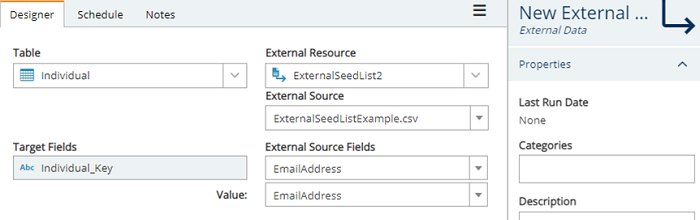
- Table – The database table level to which the external data is to be appended.
- External resource – The source of the external data (e.g. SQL Server).
- External source – The name of the file/view/table from which data is pulled.
- Target fields – The primary key field within the database to which data is linked.
- External source fields – The primary key field within the external data.
- Value - The column of data to be pulled.
-
Open the hamburger menu and save the settings.
-
Use the fetch data icon to import the external data.
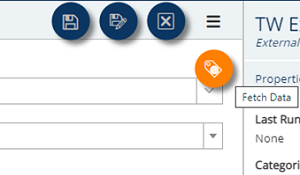
When the fetch data button is clicked, the configuration above the contents of the chosen column for each matched Individual_Key will be imported.
Note: if you update column headers in an existing seed list then the steps need to re-taken i.e. fetch data again.
When the new external data field is used, the field will be checked against the refresh properties specified. You can choose to not refresh the data or to refresh after a set period.
The result from the external data import is stored as a calculated field which can be used for a variety of applications including creating selections or making decisions within campaigns and journeys.